Web/Tech

  • First Impressions of the New Kindle.

    090227 Kindle

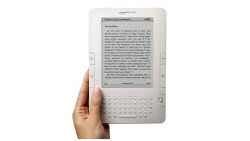
    Frankly, I didn't think I would love it. I was wrong.  Perhaps more important than just "loving it", I like using it.

    It's thin, light, and easy-to-read. At first I wasn't sure it felt right … But, at first, I didn't buy the leather cover. Believe it or not, that made a big difference. I like that it now feels like a "book" in my hands. There is a lot to like, and I got used to it very quickly.

    A Mini Feature Review:  Here are the basics.

    • Terrific Display: it uses fast and crisp E-Ink technology;
    • Huge Capacity: it will hold over 1,500 books;
    • Wireless: it has built-in free access to Sprint's data network;
    • Great Battery Life: it lasts for more that 4-days worth of reading, even with the wireless on;
    • Built-in Keyboard: to annotate text, or to use search capabilities and the Internet;
    • Text-to-Speech: surprisingly well done and useful while driving or doing things.

    Looking Good Is A Good First Step.  While I was waiting for my Kindle to come, I guess the thing I questioned most was whether I'd actually read on it.  Right out-of-the-box, my first impression was that the Kindle had a great display.  I took it outside, and it still looked terrific, even in the bright sunlight. I did have to adjust the font size for it to feel "right" to me. However, it was easy to figure out what felt
    natural (and here is a hint for the older readers … at night, a slightly bigger size is what feels natural to
    me).

    090227 Kindle Is Pencil-Thin
    Having Lots Of Things To Read Is Nice Too
    . Carrying a bookcase full of books in pencil-thin package is pretty cool.

    There's over a quarter million books available for the Kindle, and that number is growing rapidly. Many best-sellers are just $9.99, which is much cheaper than the paper versions.  In addition to books, Amazon has made it easy to read web and blog content with the built-in browser and free Sprint data network. Also, you can convert and transfer Microsoft Office and PDF files by e-mailing them to your Kindle's e-mail address.

    Cheap Is Good, Free is Better.  To get you used to reading on the Kindle and using Amazon's store to get the content, they've made an impressive amount of books free. The first book I downloaded was a free copy of the Bible. I heard it was a Good Book. That's good business on many levels.

    Download Sample Chapters To Make Sure You Like It.  Taking that concept a little further, Amazon also makes it easy to download a few sample chapters of many books to your Kindle before buying. This has already changed how I use Amazon, and it adds a key benefit that the storefront bookstores relied on, browsing several books to find the one that suits me. Now, I can do that anywhere and anytime.

    And once the sample is on your Kindle, it's only takes one-click to get the whole thing. It's all very fast, very convenient, and very clever marketing.

    Yes, I sense
    it's the future. And I'm a gadget guy who loves to play with the future
    early. However, I'm also a gadget guy who has a pretty big gadget graveyard for
    things that didn't work so well. The Kindle works well. I can tell
    because I'm using it more, not less.

    All-in-all, I'm impressed.  Next time, I will talk about the business implications of the Kindle on Amazon and its customers, competitors, and suppliers.  Till then, here are a few other links worth exploring.

  • Getting More Out of Outlook

    NEO Pro Here is a great tool I use to manage e-mail better.  It works along-side of Outlook.  It is called Nelson E-Mail Organizer.  It works great for me. 

    An Easy Way to Save Time.  I don't know about you, but I spend a lot of time managing and dealing with e-mail during a normal business day. So, on one hand, it's something that I take for granted. While, on the other hand, it's an area where I'm most likely able to save time or benefit from improvements in the tools or process that I use.

    Over the years, I've tried many different tools to help me search and organize information better. The Nelson E-Mail Organizer (or "NEO Pro") is the best I've found so far. By that, I mean that it's a complete whole product solution (not just a utility) and I use it every day.

    Rather than just listing all the things I like about it, I put together a two-minute video that highlights the features I value most.

    Here is the direct link to the demo video.

    Finding A Needle In A Haystack.  Nowadays, it is easy to suffer from information overload.  For example, I keep my mail in different files. 

    • My corporate mail resides on a server.
    • I also use personal e-mail accounts that are web-based from services like Google and Hotmail.
    • And I archive old mail separately in files that I keep on my computer.

    That makes finding what I'm looking for more difficult than simply using Outlook's built-in search capability. Luckily, NEO Pro works just fine under these conditions. It gives me a unified view into all my e-mail.

    It's Not Just A Search Tool – It's A Better Way to Organize Your Information

    There's a difference between a simple search utility and a tool to allow you to organize and filter what you're looking at in useful ways. An easy way to understand this capability is based on time. For example, show me all mail I got today, or this week, or this month. That's useful, but there are so many other ways that I may choose to interact with my mail.

    Distinguish and Deal With Direct Mail Differently Than Bulk Mail.  One of the most useful filters, for me, is to see direct mail from people I care about – separately from the bulk mail and subscriptions that make up most of my message traffic. NEO Pro makes this effortless, and this feature alone would be enough for me to use it every day. What this means is that I can come back in from a meeting and instantly see the things that are important for me.

    Use Categories.  Another way to filter information is to categorize mail in ways that make sense to you. So, I use categories like Technology Newsletters, Hedge Fund News, and Market Commentary.  Of course, you can create categories that make sense to you; so you can read what you want, when you want.

    Find Everything To or From a Person.  Another feature I really appreciate is the ability to see all mail to or from a particular person in one place (even if they have multiple e-mail addresses). In NEO Pro, there is a view lets me do exactly that. Even better, I can access it in one click from any other view.

    In addition, here's a link to their tutorial page where you can investigate other features and benefits.

    Another tool worth looking at is Xobni (which is Inbox spelled backwards).  Learn more here.

  • Getting More Out of Outlook

    NEO Pro Here is a great tool I use to manage e-mail better.  It works along-side of Outlook.  It is called Nelson E-Mail Organizer.  It works great for me. 

    An Easy Way to Save Time.  I don't know about you, but I spend a lot of time managing and dealing with e-mail during a normal business day. So, on one hand, it's something that I take for granted. While, on the other hand, it's an area where I'm most likely able to save time or benefit from improvements in the tools or process that I use.

    Over the years, I've tried many different tools to help me search and organize information better. The Nelson E-Mail Organizer (or "NEO Pro") is the best I've found so far. By that, I mean that it's a complete whole product solution (not just a utility) and I use it every day.

    Rather than just listing all the things I like about it, I put together a two-minute video that highlights the features I value most.

    Here is the direct link to the demo video.

    Finding A Needle In A Haystack.  Nowadays, it is easy to suffer from information overload.  For example, I keep my mail in different files. 

    • My corporate mail resides on a server.
    • I also use personal e-mail accounts that are web-based from services like Google and Hotmail.
    • And I archive old mail separately in files that I keep on my computer.

    That makes finding what I'm looking for more difficult than simply using Outlook's built-in search capability. Luckily, NEO Pro works just fine under these conditions. It gives me a unified view into all my e-mail.

    It's Not Just A Search Tool – It's A Better Way to Organize Your Information

    There's a difference between a simple search utility and a tool to allow you to organize and filter what you're looking at in useful ways. An easy way to understand this capability is based on time. For example, show me all mail I got today, or this week, or this month. That's useful, but there are so many other ways that I may choose to interact with my mail.

    Distinguish and Deal With Direct Mail Differently Than Bulk Mail.  One of the most useful filters, for me, is to see direct mail from people I care about – separately from the bulk mail and subscriptions that make up most of my message traffic. NEO Pro makes this effortless, and this feature alone would be enough for me to use it every day. What this means is that I can come back in from a meeting and instantly see the things that are important for me.

    Use Categories.  Another way to filter information is to categorize mail in ways that make sense to you. So, I use categories like Technology Newsletters, Hedge Fund News, and Market Commentary.  Of course, you can create categories that make sense to you; so you can read what you want, when you want.

    Find Everything To or From a Person.  Another feature I really appreciate is the ability to see all mail to or from a particular person in one place (even if they have multiple e-mail addresses). In NEO Pro, there is a view lets me do exactly that. Even better, I can access it in one click from any other view.

    In addition, here's a link to their tutorial page where you can investigate other features and benefits.

    Another tool worth looking at is Xobni (which is Inbox spelled backwards).  Learn more here.

  • So Bad, It’s Good

    Microsoft has a new product that people use to create a new genre of really bad music.  I have to admit that I enjoy it, even though it's like watching a train wreck.

    Microsoft just released Songsmith, a product where you sing the words as best you can, and its software supplies computer-matched musical accompaniment. The truth is that it probably has some pretty advanced technology.

    It has become trendy to take a vintage rock video, strip out the instruments, and then let Songsmith process the classic song in "unexpected" ways.  So, if you want to hear the Police's song, Roxanne, differently than you had before … Songsmith is the right tool for that job.

    To make things worse (or better) Microsoft's promotional video for Songsmith is so bad that it is painful to watch.  It is so campy I suspect it was done intentionally to generate buzz. You've got to see it to believe it.

    Here is the direct link

    For the record, I'm a fan of Microsoft.  It may not be a popular
    position to take, but I like and use lots of their software.  They come
    up with many innovative things.  The ad, above, may not be their best
    effort. So watch and listen for yourself?

    Here is the result of Songsmith processing the classic Police song, Roxanne.

    Remember, you get to choose lots of options, like tempo, style, and instruments.  So, someone wanted it to sound like this.  Still, it speaks for itself, doesn't it?  Here is the direct link.

    Here's one with a slightly better result … Oasis' Wonderwall.

    Here is the direct link.

    Here are a few other links worth checking.  Remember, real music sounds better when this stops.

  • So Bad, It’s Good

    Microsoft has a new product that people use to create a new genre of really bad music.  I have to admit that I enjoy it, even though it's like watching a train wreck.

    Microsoft just released Songsmith, a product where you sing the words as best you can, and its software supplies computer-matched musical accompaniment. The truth is that it probably has some pretty advanced technology.

    It has become trendy to take a vintage rock video, strip out the instruments, and then let Songsmith process the classic song in "unexpected" ways.  So, if you want to hear the Police's song, Roxanne, differently than you had before … Songsmith is the right tool for that job.

    To make things worse (or better) Microsoft's promotional video for Songsmith is so bad that it is painful to watch.  It is so campy I suspect it was done intentionally to generate buzz. You've got to see it to believe it.

    Here is the direct link

    For the record, I'm a fan of Microsoft.  It may not be a popular
    position to take, but I like and use lots of their software.  They come
    up with many innovative things.  The ad, above, may not be their best
    effort. So watch and listen for yourself?

    Here is the result of Songsmith processing the classic Police song, Roxanne.

    Remember, you get to choose lots of options, like tempo, style, and instruments.  So, someone wanted it to sound like this.  Still, it speaks for itself, doesn't it?  Here is the direct link.

    Here's one with a slightly better result … Oasis' Wonderwall.

    Here is the direct link.

    Here are a few other links worth checking.  Remember, real music sounds better when this stops.

  • Resonant Chamber

    This Animusic video is mesmerizing.  The animation is better than what you find in many video games and adds something to the music, which is pretty good in-and-of itself. 

    The video was not animated by humans.  Instead, the studio that created this video invented an animation engine that analyzes the notes in a piece of music and the engine's algorithms animate from there.

    Fascinating; check-it-out for yourself.

    Here is a direct link to the video on YouTube.  Animusic has their own YouTube Channel.

  • Resonant Chamber

    This Animusic video is mesmerizing.  The animation is better than what you find in many video games and adds something to the music, which is pretty good in-and-of itself. 

    The video was not animated by humans.  Instead, the studio that created this video invented an animation engine that analyzes the notes in a piece of music and the engine's algorithms animate from there.

    Fascinating; check-it-out for yourself.

    Here is a direct link to the video on YouTube.  Animusic has their own YouTube Channel.

  • Data Visualization of President Obama’s Inauguration Speech

    Here are two interactive ways to look at and understand what was said.

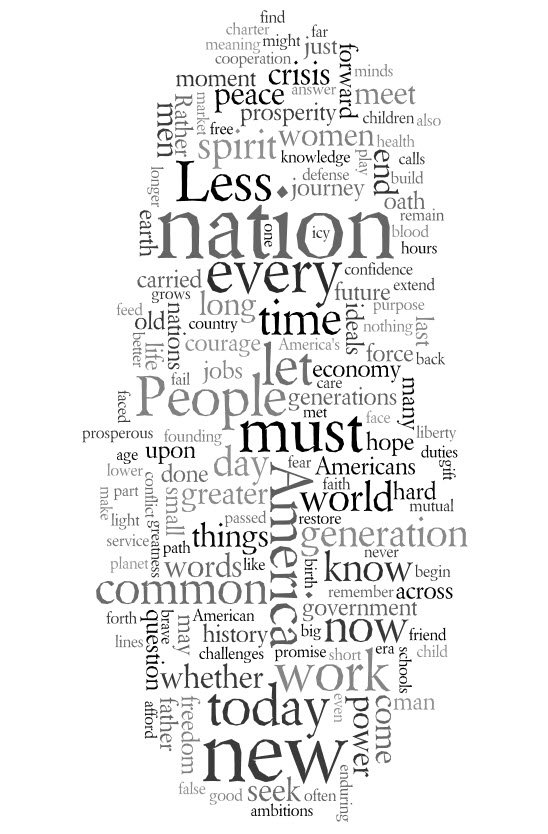
    090120 Obama Speech Word Cloud

    Go to Wordle's site to make one yourself.  You can choose colors and layouts to get the look you want.

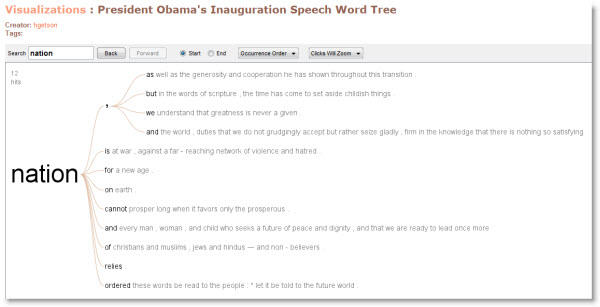
    Also, here is a Word Tree from IBM's Many Eyes site.  I like this type of tool because you can interact with the data.  Type in any word you see in the Word Cloud above.  This will show you every instance of that word, in context.

    090120 Obama Speech Word Tree Also, here is an embedded link to a version you can interact with yourself.  I suggest you start with words frequently used in the speech like: Nation, People, Today, New and Must.  You can also try phrases like "We Will".

    The Word Tree tool is interesting and useful. Also, I can see how it will work in a business setting with business plans, proposals, marketing material, etc.  This is very cool; and it is easy to build a word tree on your own data at Many Eyes.  Have Fun. 

    Other Links:

    • Word Clouds of Inaugurations Compared (Bush, Clinton, Reagan, Lincoln). (Read Write Web)
    • Hand-Drawn Mindmap of Obama's Speech. (Agerbeck)
    • Photosynth Image of Inauguration site. (Mashable)
    • Another Inauguration site panorama with incredible detail. (Gigapan)
    • Pictures of Obama's Inauguration from Space; puts things in a different perspective. (GeoEye)
  • Hope, As Something to Hope For

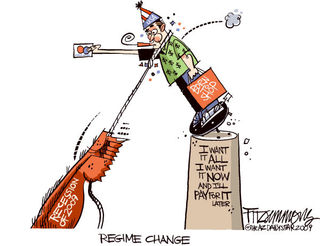
    Regime Change Political Cartoon
    It doesn't matter if you've read "The Audacity of Hope."  Tuesday, change will come.

    I'm pretty sure that President Obama will not have these lines in his Inauguration Speech.

    "Most of all, I want to thank the Republicans for making this historic occasion possible. Of course, I must also thank you, President Bush, for years of angering the American people. Without your efforts, none of this would have been possible. You have shown the world that  "change" is not only something we can believe in again, but something we demand."

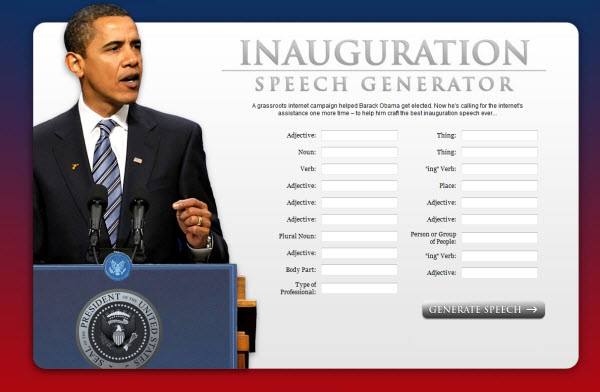
    What Obama won't say on Tuesday … is being said with cartoons or gadgets like this Obama Inauguration Speech Generator.
    Click the image below to make your own.

    090117 Obama Inauguration Speech Generator 600p

    I found it at Mashable, and enjoyed remembering playing MadLibs as a little kid.

    Also, Esquire had an interesting piece that generated two links on this topic.

  • Hope, As Something to Hope For

    Regime Change Political Cartoon
    It doesn't matter if you've read "The Audacity of Hope."  Tuesday, change will come.

    I'm pretty sure that President Obama will not have these lines in his Inauguration Speech.

    "Most of all, I want to thank the Republicans for making this historic occasion possible. Of course, I must also thank you, President Bush, for years of angering the American people. Without your efforts, none of this would have been possible. You have shown the world that  "change" is not only something we can believe in again, but something we demand."

    What Obama won't say on Tuesday … is being said with cartoons or gadgets like this Obama Inauguration Speech Generator.
    Click the image below to make your own.

    090117 Obama Inauguration Speech Generator 600p

    I found it at Mashable, and enjoyed remembering playing MadLibs as a little kid.

    Also, Esquire had an interesting piece that generated two links on this topic.